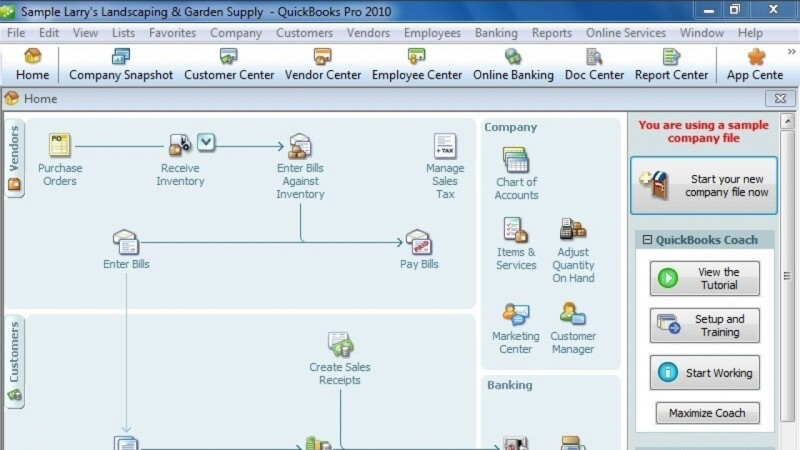
You. Hello. My name is Takisha Strong. In these lessons, we will learn about special lists within QuickBooks Desktop Pro 2022. You'll learn how to create items in your Fixed Asset Item List, how to develop price levels for specific customers, and how to track classes for your company. We'll be using our sample product based company, Rock Castle Construction, for the lessons. Let's get started. For the Fixed Asset Item List, the first thing you'll want to do is make sure you have accounts ready to track the value of your fixed assets. As you know, fixed assets are major purchases that your company uses over time. Let's press the chart of accounts tile in the company portion of the homepage to get started. You'll see, Rockcastle Construction already has several fixed asset accounts available, including the accumulated depreciation account which they are tracking in one account for all of their fixed assets. However, you can also track accumulated depreciation by each individual class of assets. Let's create two new accounts. For office equipment. Press CTRL N to select New Account. We're going to select Fixed Asset for major purchases, then continue. If your company tracks its GL accounts by number, you can enter that. Here. We'll call the new account name, new office equipment. At this point, we don't have any sub accounts. If you had a specific description of this GL account, you could enter it here along with any notes. And then you can double check your tax line mapping based on the structure of your company. Press Save and close. You'll see, we now have New Office Equipment as a new account under the Fixed Asset Item type. Let's press CTRL N again to create accumulated depreciation specifically for that new office equipment. Select Fixed asset again and hit continue. We'll abbreviate it a D for accumulated depreciation and call this New Office Equipment. Now, we'll want this as a sub account for the new fixed Asset New Office Equipment that we just created. We don't need any additional details, and we'll select Save and Close. Now you'll see, for New Office Equipment, the accumulated depreciation will be grouped with your Fixed Asset Account here, while all of the other fixed assets will be depreciated under one line. Let's close out and go back to our home page. To open the fixed asset item list, press lists from the main menu, then fixed Asset Item list. Now, I'd like to bring to your attention in QuickBooks Desktop Pro 2022, the Fixed Asset Manager is not available. That means you'll have to track the cost and depreciation of your fixed assets manually. The fixed asset manager is only available in the premier accountant version of QuickBooks, the Enterprise version and the Enterprise accountant version of QuickBooks. Let's walk through how to add an individual Fixed Asset Item, which will be your subledger or the detail that you'll use to support any depreciation, expense or assets that you add to your company's books. At the bottom, select item and new item to create a new asset. QuickBooks gives you a quick description of what a fixed asset is. Next you can add the asset name and or number. Let's call this new office machine. You can note if you purchased it as new or used, and you can provide a description of your new machine. Let's just call it a computer. You'll note the date of your purchase, the cost of the purchase, and if you're using a specific vendor or payee, you can include that in this field. Next, you'll want to note the asset account that you want to track for this fixed asset item. We'll select new office equipment. When you sell the computer, you can note that the item is sold, provide a description of how it was sold if you choose, along with the date, the price it was sold for and the actual expense related to the sale, if any. Down at the bottom, you can provide additional details regarding the asset, such as a longer description, the location where you're keeping this particular asset, if your company has more than one location, if the purchase was associated with the PO number, the serial number of the computer, if it has a warranty. You can note the warranty expiration date along with any additional notes you may have. I also want to bring your attention to custom fields for all of your fixed assets. You can identify it by color, material or any additional fields that you'd like to add by selecting Define Field. Let's press OK to continue. At the bottom, you'll now see that you have your New Office Machine listed in your Fixed Asset Item list. We didn't note a specific location for the computer, but we do have our purchase date the account that it would be booked to, along with the price of 1200. Keep in mind, since we don't have Fixed Asset Manager available in Desktop Pro, the basis, accumulated depreciation and book value will not be tracked by individual item in this version of QuickBooks. However, when you sell the asset, these will be populated. Let's walk through how to create an entry to match our one $200 for the New Office Machine to actually record it on the books, select Company from the main menu and make journal entries. We'll note the date of the purchase and we'll call this Fixed Asset. We'll select the same GL account, which is new office equipment. Add the total price of the machine, which was 1200. Add a memo. We don't need the name, it's not billable to a customer, and we don't need to note the class since this is an internal entry and we'll note the bank account used to purchase the computer, we'll use the same memo from above and save and close. Let's go back to our home page and take a look at our chart of accounts now under New Office Equipment. You'll see we now have the value of one $200 for the item. In the next lesson, we will walk through how to create specific price lists for individual customers. Thanks for watching. Bye.