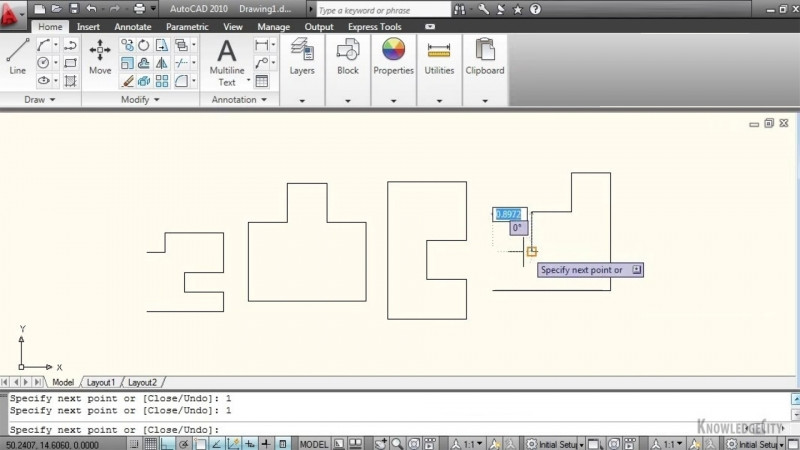
Hello, in this chapter we are going to look at accurate positioning within AutoCAD. And in this particular lesson we are going to discuss the coordinate display. So to get started, I'd like for you to open up a brand new drawing in AutoCAD. Here, I'm on the start tab. And I'm going to click on New, just to create a new drawing from the default AutoCAD template. So now our coordinate display is shown on our status bar. Here I already have mine displayed. If you don't have it displayed on your status bar you can come over here to the right, click on customization. And up here at the very top is the check box for coordinates. So make sure you have a check box as I have here on my screen. If I uncheck it, coordinates are no longer displayed. I'm gonna check it again, and I don't have coordinate it's on my screen. So remember, coordinates are not displayed by default on your AutoCAD status bar or any of your workspaces unless you've already customized your workspace or enabled them from your status bar. Now let's look at what you can do with your coordinate display. So right now I'm going to click anywhere in my drawing screen just to get out of the status bar menu. And right now my cursor as I move it around is not changing my coordinate display. I'm gonna come down to my coordinate display and I'm just gonna click once with the left mouse button. And now as I move my cursor around, my coordinates are moving. I'm gonna come over here and click on the coordinate display again, and it stops. Now, there are actually three display types for your coordinates. What you've seen right now was the static and the dynamic ones. So right now, as I move my cursor it's not updating the coordinates but every time I click once with my left mouse button, it updates. If I click again, it updates. That's the static setting. If I click it once again, now I'm in the dynamic setting, where it will update continuously. For this third setting, which is for angle and display, I'm gonna start the line command. I'm gonna press L on my keyboard and press Enter. And I'm gonna specify my first point anywhere on my screen. And now look at my cursor, down at the command line. It's showing my angle and the distance. So this is the angle side and here's my distance side. So as I move my cursor around now it's given me the distance from that point that I clicked and what angle I'm at. If I was to click the coordinate display again It's now gonna change back to a dynamic display. Click it one more time, and now it's only gonna update as I click points. I can also right click on the coordinate display, and choose from a couple of options. So I have the option of having it display absolute coordinate values or relative coordinate values. So I'm gonna choose relative coordinate values, and what this will do is it's gonna display the coordinates relative to a point that I recently specified on the screen. So from this point right here is now my zero zero, the coordinates are relative. If I was to right click and choose absolute, it's going to give me the absolute coordinates relative to the current user coordinate system. In this case, the current user coordinate system of zero zero. This is my zero zero spot. As I move closer to the zero zero and this X and Y user coordinate system, you see I get closer to zero. As I move away the coordinate values for X and Y increase. So that's the absolute display. I'm right clicking on the coordinate display. A few more options you have is the geographic one which is only gonna display the coordinates relative to a geographic coordinate system that will be specified in the drawing. And lastly, you can cycle the display of your coordinates by pressing the Control I key on your keyboard. So holding Control and then pressing I will alternate or toggle the display of my coordinates. I'm gonna press Control I again, and notice now my coordinates are static. Control I again, third dynamic. Control I again, and now it's the distance in angle. Thanks for watching this lesson. Join me in the next lesson where we will take a look at snap and grid settings in AutoCAD.