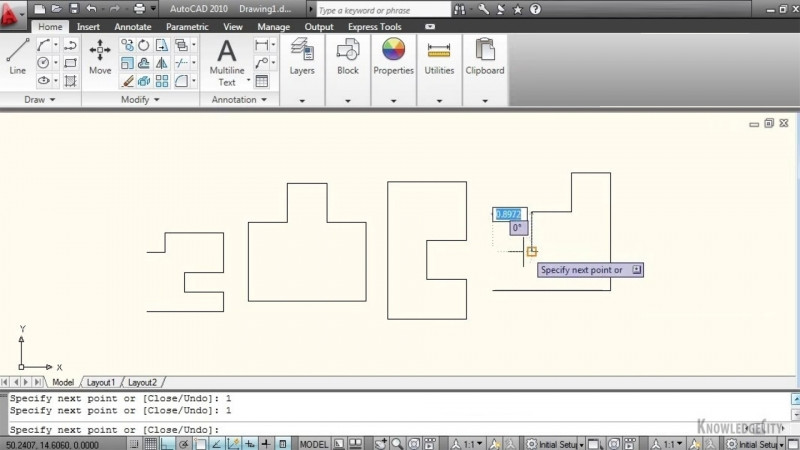
Hello, in this chapter, we are going to begin working with page setups, printing, and plotting in AutoCAD. And in this particular lesson, we're going to shed some light on what is the difference between model space, paper space, and layouts. So before we begin, I'd like for you to make sure that you have opened up the model space, paper space, and layouts drawing, as I have shown on my screen. And once you have that open, let's go ahead and follow along. Now, AutoCAD has primarily two separate environments that you'll be working in, model space and paper space. Model space is where you'll be doing all of your drawing, your modeling. Think of it as that. As you see here on my screen, this is my model. I have a couple of views on my screen that represent the model that I created. You can see down here at the bottom of your screen, we are in the Model tab. Let's go ahead and click on the Layout tab. And now we are in AutoCAD's second environment, which is called paper space. You can see that on your status bar. I'm in paper space now. I'm gonna switch it back to model, and you show it's in model space. I'm gonna go back to the layout, and now I'm in paper. So paper space can be thought of where you put all of your annotations, your title blocks, your text, dimensions, as you have here on my screen. A layout is a piece of paper. Think of it as that. So all of your layouts, and you can have multiple layouts. By just hitting the plus button here, you can create multiple layouts. All of these can be thought of as individual sheets of paper. Another way to alternate between model space and paper space is to come over to your Drawing tab up here on the top, and here you see the different layouts that you have in your drawing, as well as your model space. So hover your mouse over the drawing, and as you hover over the different views, your screen will change. So let's go back to the Model tab, and there you have it. You can only have one model space in your drawing, but you can have multiple paper spaces or layouts. Thanks for watching. Join me in the next lesson where we will discuss page setups and configuration.