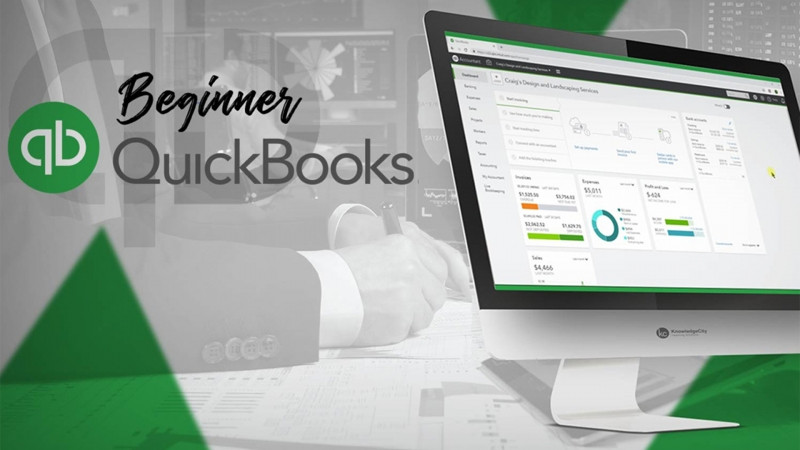
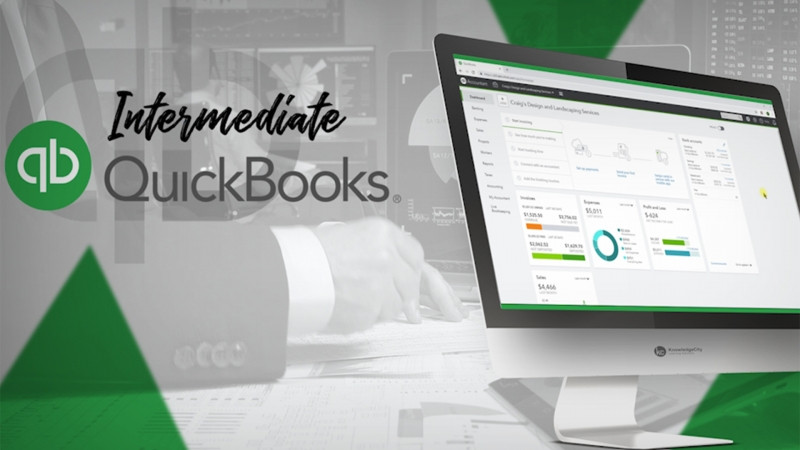
Hello, my name is Tequisha Strong. In these lessons, you will learn how items are defined in QBO, how to set up and add inventory items, how workflows are affected by inventory, and the reports associated with inventory transactions. We'll be using our sample company, Craig's Design and Landscaping Services for the lessons. Let's get started. Using the gear icon menu at the top right hand of your screen, let's select all lists. The Products and Services and Product Categories lists are those that are affected by inventory. Let's select Products and Services. On this screen, you'll see the main dashboard tracks low stock and out-of-stock inventory items. At the top right, you can manage categories or run an inventory report, or you can add new inventory items. Inventory items have four distinct definitions within QBO. You have inventory items, which are products the company may buy and or sell that it must keep track of the quantities. You have non-inventory items, which are products the company may buy and or sell, but it either does not need to or cannot physically track the quantities, for example, nuts, bolts, and screws. Service items, which is exactly that, services that a company may provide to its customers for a fee. And then you have a bundle, which is a collection of any of the above. Now let's take a look at the Product Categories. The Categories List allows you to group similar inventory items to better manage your inventory or to keep a more cohesive list. For example, we have a design category with a subset of fountains related to the design, landscaping with a subset of sprinklers, and then all of the pest control services would be grouped into one product category. For this lesson, let's create a new category under landscaping services for privacy fences, and we'll also create a new service related to the privacy fence installation. Let's select new category. We'll call the new category privacy fence. We'll make this a subcategory of our landscaping services. Let's press Save. And now you'll see that we have privacy fence as a new category. Let's use the gear icon at the top right of the screen, or you can use the arrow back to head back to your products and services. Under landscaping, you won't see the product category because there have been no inventory, non-inventory service, or bundle items assigned to the privacy fence category. Let's do so now. Let's select a new service. We'll name this service privacy fence installation. If you make a mistake in selecting the type of inventory item, you can change the type here. If this were a product and you needed to note the skew, you could add it here. You could add a picture of the product or service. Select a category, which will assign this to privacy fence. If you'd like to add a description, you can do so here. You'll want to let QBO know that this service is something that you provide to your customers. Based on that, you can set a standard price or rate for the service. And you'll also need to select the income account so that all transactions related to the privacy fence installation can be recorded properly. Lastly, if your area collects sales tax on services, you can edit those variables here. Since we are providing the services within the company, you don't need to select this box. However, if the services were being provided by a subcontractor, you still could select the box even though this is a service and not a product. In those situations, if you are purchasing the privacy fence installation service from a subcontractor that the company pays, you will select the box. If you pay your subcontractors a standard fee, you could list that in the cost. Note which expense account, the cost, or the subcontractors fee should post to. And if you have a preferred vendor or contractor to provide that service, you can select them here. Let's uncheck the box and select Save and Close. Now, if we scroll down, you'll see that we can see our new category, privacy fence, as a subcategory of landscaping. And we also have our new service, privacy fence installation. In this case, we have that service is taxable. If we provided a description, it would be listed along with a standard sales price and cost if we were providing this through a subcontractor. In the next lesson, we will learn how to set up and add inventory parts to the QBO file. Thanks for watching.