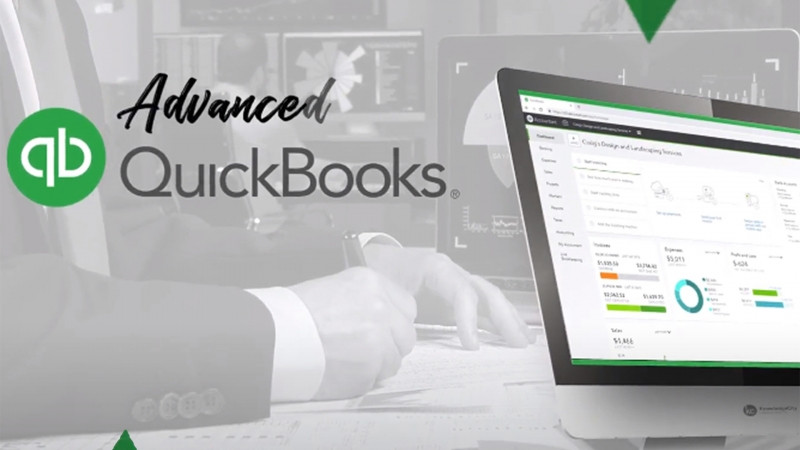
Hello, my name is Tequisha Strong. In these lessons, you'll learn to manage your banking activity using QBO. We'll be using our sample company, Craig's Design and Landscaping for the lesson. There are a couple different ways to link your bank accounts to QBO. On the opening screen, get things done. You'll see the bank account which is to the right. You can connect new accounts by selecting the Connect Accounts button at the bottom. On the Business Overview tab, under Business Overview, you'll see that you have that same bank account widget. You can select Connect Accounts from here as well. Finally, under the Bank Transactions tab, this is where you'll manage all connected accounts and you can also link new accounts to your QBO file. Let's select Link New Account. You can type the bank's name to search for the bank or you can scroll some of the options that QuickBooks has available. After you select your bank, you'll be prompted to log in and provide QuickBooks with the authority to pull your bank transactions and link them to your QBO file. Because this is the sample company, of course, we cannot link any live files to the account. Let's go back to our bank transaction screen to take a look at accounts that have already been linked to the sample file. Let's walk through this screen. Along the top, you'll see you have four different tabs, one for all bank transactions, a tab for app transactions, including those that have linked through sales channels, such as Amazon, eBay, and Shopify. The transactions filtered by receipts or receipts that you've added to your QBO file using the app or uploaded from your computer. All sales-related transactions that need to be categorized. And the final filter is all expense transactions that can be categorized. Let's go back to our bank transactions to see the other options available on the screen. Towards the top, you'll see that you have three different accounts that have been linked to QBO. To topple between the accounts, you can select the drop-down arrow next to the name of the account. You can also choose to reorder the accounts on the screen, or you can simply press the tile related to the bank account that you'd like to review. All the transactions are separated by those that need reviewing, those that have already been categorized or reviewed, and those that have been excluded from review. You'll want to exclude transactions, for example, that may have been mistakenly entered as a duplicate. If you import a transaction and then later on linked an account and your bank account feed brought in that same transaction, you can choose to exclude one so that you don't have duplicates in your bank register. Over to the right, you can select go to bank register to view a detailed list of all transactions that are included in the QBO register for that particular bank account. Next, you can filter your view by dates, filter the view by types of transactions, for example, all transactions, deposits or money in, all expenses or money out, those that have been automatically recognized by QBO, a potential match identified by QuickBooks, those that have been transferred, those for which a bank rule has been applied, missing the payee or customer information, and finally, those that have been unassigned. If you're looking for a particular transaction, you can use the search bar to search by description, check number, name, amount or any other details. Over to the right, you can print the view, export the view, or adjust your view using the gear icon. You can choose to hide or view the check number column, the from or to payee details, you can turn on grouping to group similar transactions, you can automatically add any new vendors, you can show your amounts in one column, show the tax field if your company is using tax to group similar forms, you can make the date feel editable, you want to be careful using this option, if you edit the date field for a transaction that has been loaded from your bank feed, it may cause issues when it's time to reconcile your bank account, you can copy the bank detail that comes in from your bank to the memo in your bank register, you can show any suggested rules for the transaction, show the bank details that posted to the transaction, and you can enable or disable suggested categories for each transaction. Finally, you can choose how many transactions you'd like to view on the screen at once. In the next lesson, we'll learn to add, match, transfer, and exclude the individual transactions that have come through in your bank feed. Thanks for watching!